SQL Express Installation
The following instructions will allow you to install SQL Server Express 2022. This is the database engine used to run the TM7 Application.
1. Click the link to open a browser to the MSSQL Server 2022 Express download page.
2. Click on Download to open installer
3. Select Save File to save to your computer
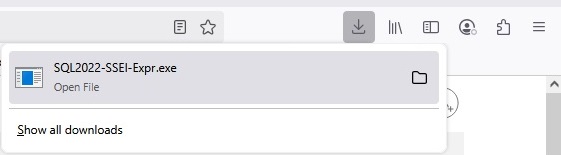
4. Once the download is complete, open the file from the browser Downloads section to start the installation
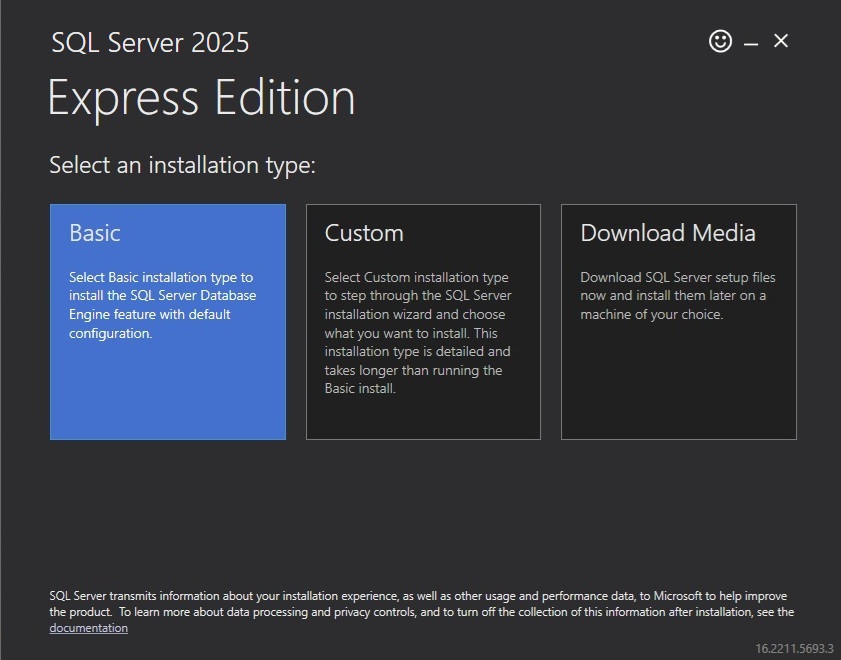
5. Select Custom Option
6. Change Media Location if required (eg. there is limited space on C: Drive). Select Install
7. Once the install application has downloaded, the SQL server installation will start
8. Select New SQL Server Installation
9. The Installation will start and will have the following options

Global Rules: No action required, select Next
Product Updates: Select Skip Scan and then select Next
Install Set Up Files: No action required, select Next
Install Rules: No action required, select Next
License Terms: Check the box "I accept the the license terms" and select Next
Azure Extensions for SQL Server: Untick the "Azure Extensions for SQL Server" and select Next
Feature Selection: Only "Database Engine Services" are required. The instance Root directory can be changed if needed. Select Next

Instance Configuration: Select Default and then Select Next

Server Configuration: No action required, select Next
Database Engine Configuration: Select Windows Authentication Mode and ensure that your User name shows as Sql Server Administrator ( Eg Current User) Select Next

Installation Progress: No action required, select Next
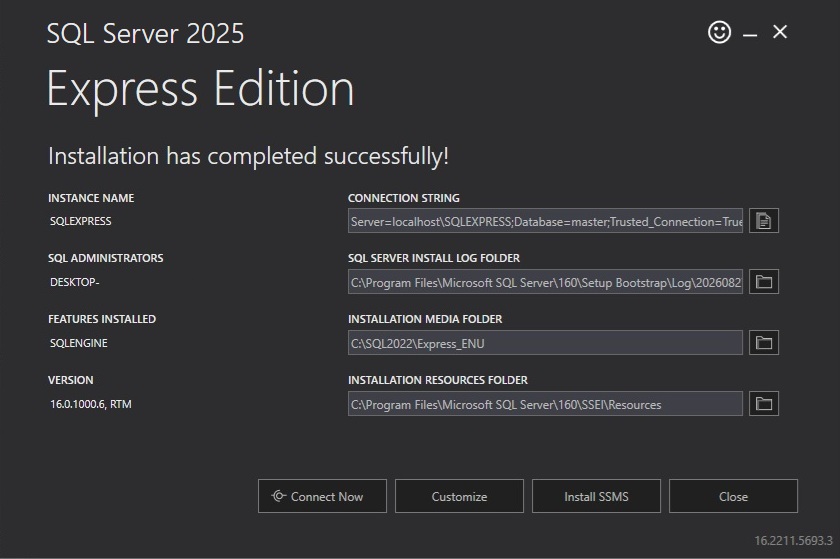
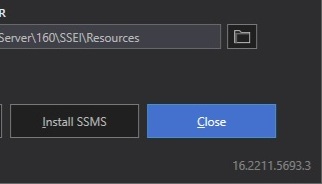
Complete: Once the Installation is complete, Select Close and then Close the SQL Server Installation